|
Exercises:
|
| Page contents: | Introduction | Setup | Survey | Processing | First result | Second inversion | Tighter misfit | Synthesis | IntroductionObjectives of this exercise are to practice using 2D DC resistivity data and inversion, with an emphasis on the importance of obtaining several equally valid models before finalizing interpretations. A separate page contains questions that you should be able to answer if you understand what is going on. If this exercise is an assignment for a course, your instructor may require answers to these questions for marking. The exercise should take students new to DC resistivity roughly 4hrs to complete. As this is an applications problem we will follow the seven step framework for applying geophysics. WARNING: please read all instructions carefully, and don't rush. Setting up the codes:For installation see Chapter 10, Section b.2, the DCIP2D QuickStart page. On that page, the test steps that follow installation instructions are recommended, but optional if you are going to complete the exercises below. Sidebar1; notes about software (click to expand). Programs, file names, and directories (ie "folders").
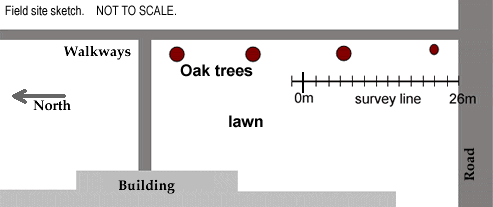
Steps 1 and 2 - Setup and Physical PropertiesFirst a little thought should be put into the context of the problem. The geotechnical task involves locating and characterizing the width, depth, and composition a shallow trench at the field site sketched in Figure 1. The trench was dug to contain utilities, but we are not interested in them; just the trench itself. The survey was performed along the line shown, and the target was expected to be somewhere under this line, lying roughly perpendular to the line.
Before considering geophysical work, some expecations should be built up in your mind. Questions such as the following should be answered quickly and briefly, using common sense, professional intuition, and any knowledge you might have about the field site or other similar or nearby sites. The questions are listed on the separate questions page. Note that, even if you are not answering questions as part of a course assignment, questions like these should always be considered because applying geophysics can never be successful without some expectations about the context.
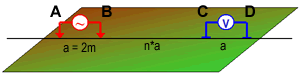
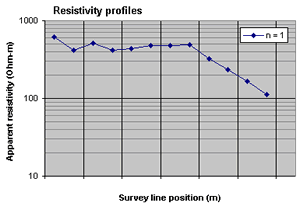
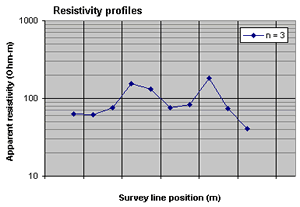
Steps 3 and 4, surveys and dataThe first thing done during this survey was to move a fixed dipole-dipole electrode array along the line using a fixed geometry of "a"=2 and "n"=1. Based upon the field site sketch above, the first measurement location had the current source's left electrode on line position -2 metres and the resulting apparent resistivity profile is shown on the graph shown Figure 3. The second thing done was to repeat the profile using n=3. Finally, a complete resistivity data set was gathered involving n=1, 2, 3, and 4. This raw data set can be examined using the "dcip2d-data-viewer.exe" program. The data file itself can be seen here. Right click the link and save to a new working folder under the folder containing the modelling and inversion codes on your local computer. (NOTE: if you don't already have the inversion codes, see sidebar 1 above). View this data set by opening it within the program “dcip2d-data-viewer.exe”. The objective is to gain some feeling for what information the data might contain, and for data quality. Questions on the questions page provide guidance for how to make use of raw data images prior to processing and nterpretation. Steps 5 and 6 : Processing (in this case, 2D inversion) and interpretationSteps 5 and 6 often require some iteration because the amount of processing may be determined by interpretation that is carried out as results are produced. After examining raw data, the next step is to invert the data. If you have difficulty using the programs be sure to ask the instructor for help. NOTE that for this lab it is especially important to keep work in the folders recommended in the instructions. Many files are produced by the inversion program and they have fixed, non-adjustable names. Your work must be managed using folders and subfolders instead of file names. The following list of steps walks you through the process of running an initial inversion.
Assessing the first inversion resultAssessment of the inversion result requires inspection of three aspects - (1) a log file listing how the program performed, (2) the data predicted by the final model must be inspected to see if it looks like the measurements, (3) the final model itself must be evaluated. The following items provide guidance for for these three aspects:
Question 17 helps you consider the model itself, and question 18 helps you consider the convergence information. No single inversion result should be used as the final model to be intereted. Since an infinite number of models are possible, several should be produced so that you can gain an understanding about which regions of the models are reliable, and which regions should be ignored. Second inversion
Keep the inversion control window open but close all other windows. To make a new model we will ask the program to find a model that is as close as possible to a different reference model (see Sidebar 5 regarding reference models).
Now run the inversion. When done, view the result. Change viewing parameters so they are the same as those of your first inversion. This includes padding, inclusion of convergence curves, and setting the colour scale to the same values as the first result. Questions in this section guide the way you should think about this result.
Using two modelsWe will work with both results to build an improved image which characterizes which portions of the model are most reliable. Select Options => Depth of investigation. Specify the "second inversion model" by browsing to the folder where your first model result was saved, and choose the file called "dcinv2d.con". If you get a warning message saying "The two refrence models appear to be identical", you have not found the first result. Leave the "cutoff" value at 0.3, and click "OK". The result should be a model shown with a portion displayed with hash-marks. Copy this image into your working document and add a caption. Tightening misfitFinally let us see if we can acquire an alternative model by asking the program to try and recreate the data more accurately. This is the same as saying we feel that the 10% error with 0.01V minimum were pessimistic and that we think data were more accurate than that.
Adjust the model image so it has the same padding cells removed, the same min / max for the colour scale, and the same depth of investigation imaging (again using the original inversion). Copy this image into your working document and add a caption. Step 7: SynthesisThe work is not done until results are considered carefully in context with all other knowledge about the job. The three images of your models must be assessed together, so they should be set up in your working document as specified above, with captions. Questions guide the thinking of this final step of the work. |