UBC-GIF 
| MAG3D Ver 4.0 Help: Graphical User Interface - One-page version |
UBC-GIF
|
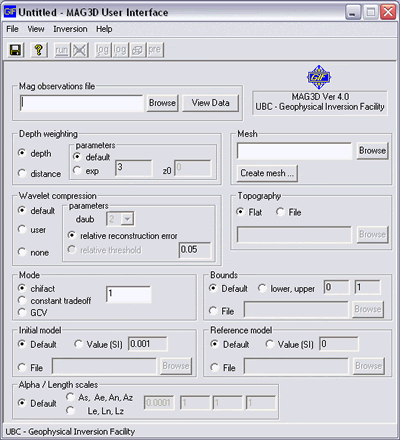 This page contains
brief instructions on using the MAG3D graphical user interface (shown to the
right). It is provided as a printable version of the HTML "point-and-click"
version, available by clicking here.
This page contains
brief instructions on using the MAG3D graphical user interface (shown to the
right). It is provided as a printable version of the HTML "point-and-click"
version, available by clicking here.
Menus
The four menus provide essentially the same functions as the tool-bar buttons described below, except for:
Save button
The parameter set in the GUI window must be saved before an inversion can be
run. The results of inversion will be placed in the directory where this input
file is saved.
Important note about directories:
Save each inversion run into a new directory because all output files get saved
using default names.
Help button
This basically gives the program name and version number, and some notes about
it's development. Please be aware of the copyright notice.
Run and kill buttons
The inversion can be run only after the parameters have been saved using the save button.
Use the "kill run" button to stop an inversion before it ends by itself. Do not end an inversion prematurly by closing the DOS window. This button is inactive unless an inversion is underway.
View resulting log, data and model files.
Four buttons here provide access to inversion results, and to log files summarizing the inversion program's performance.
Data file
Specify the input data file here. See the MAG3D user manual for data file format. You can enter the file name (including full path), or drag and drop from Windows Explorer.
The View Data button opens the data set in a new window by running the gm-data-viewer.exe program.
Mesh
The mesh which defines the model is specified here. See the user manual section 2.2 (FILE: mesh) for details.
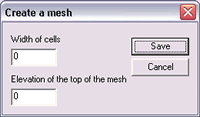 If a mesh
has not been generated, a default mesh can be created using the Create mesh
... button. A data file must already be specified. This dialogue appears:
If a mesh
has not been generated, a default mesh can be created using the Create mesh
... button. A data file must already be specified. This dialogue appears:
Specify the size of square cells in the core region (under the data set) by entering their width in units of metres. Cell depths will be half this width. Specify the elevation in metres for the top of the mesh. This must be above the topograpy. There are remarks on topograpy and meshes in several places in the manual, including section 2.2 FILE: mesh, and section 2.2 FILE: topo.dat.
The default mesh created by this dialogue will include 3 padding cells around the core region. These cells increase in size at greater distances from the core.
Wavelet compression parameters.
The compression used to speed up dense matrix multiplication is specified here.
Topography file
No topography file is necessary if the Earth's surface under the data set is assumed flat. If topography is significant then it should be specified, as per the user manual, section 2.2 FILE: topo.dat.
There are remarks on topograpy and meshes in several places in the manual, including section 2.2 FILE: mesh, and section 2.2 FILE: topo.dat.
Inversion mode
MAG3D Version 3.x can determine the tradeoff parameter in either of three ways.
 ,
of data misfit is achieved. This target value is
= chifact x N,
where N is the number of data points. This is a common option if errors
on data are assumed to be Gaussian and un-correlated.
,
of data misfit is achieved. This target value is
= chifact x N,
where N is the number of data points. This is a common option if errors
on data are assumed to be Gaussian and un-correlated.See the user manual section 1.6 for details regarding these three methods of choosing regularization.
Setting bounding constraints
This section allows for specification of upper and/or lower bounding values for susceptibilities of each cell. There are three ways of specifying bounds:
Initial model
This is the first susceptibility model the program works with. The outcome of the inversion should not depend much on this model, but if the initial model is close to the final one then convergence can be expected much more quickly.
Reference model
This is the reference susceptibility model that is part of the model objective function. The inversion will try to minimize the difference between the final model and this reference.
Model objective function coefficients.
These are the parameters that control how much emphasis is placed on each part of the model objective function.
Influence of Alphas on results
Consider the ratios  ,
,  and
and  . Larger ratios result in smoother models. As a rule of thumb, keep this table in mind:
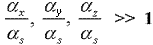 |
Structure is penalized. Constant reference models has little effect. |
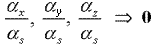 |
Smallest term dominates, so models are rough. |
To estimate values for the  's for a specific case, start by defining two length scale terms as follows:
 , , |
 |
and  |
Then consider these rules of thumb to help choose the 's: In general, keep Lx and y approximately the same as the shortest array separation, and keep Lx and y approximately equal to Lz. Also, the following relations are useful: '
| LX or Y > mesh cell width |
| LZ > mesh cell thickness |
| LX or Y < total width of the mesh |
| LZ < total depth of the mesh |